
How to import listing details from another platform
Already listed your Discord server elsewhere? Import its summary, description, categories, and tags to create a draft you can review before publishing.

Already promoting your Discord server on another listing platform? You can use that listing as a starting point instead of writing everything again.
TheDiscordList can read your public listing and fill in the following fields:
- Summary
- Long description
- Categories
- Tags
Your server name and identity still come directly from Discord. Invite settings, images, languages, social links, FAQs, and other listing options are not imported.
Key takeaway: Importing creates a draft for you to review. It does not publish your listing or change the original listing on the other platform.
Before you start
You will need:
- A TheDiscordList account connected to Discord
- A server where you are the owner or an administrator
- A public server listing on a supported platform
- The full HTTPS link to that listing
The server must not already have a listing on TheDiscordList. If we already list your server, signing in hands that listing to you; you will find it on your dashboard.
Supported platforms
You can currently import listing details from:
- Disboard
- Discord.me
- Top.gg
- Discadia
The platform you select must match the website in the listing link.
1. Choose your Discord server
Sign in to TheDiscordList and start creating a server listing.
On the Choose server step, select the server you want to list and then select Continue.
Only servers where you are an owner or administrator and that are not already listed will appear.
2. Complete the Add bot step
The second step asks you to add the TheDiscordList bot. The bot keeps member and online statistics accurate and can manage a permanent invite.
Adding the bot is optional. If you do not want to add it now, select Continue without adding the bot, confirm your choice, and continue to Listing details.
3. Open the import window
At the top of the Listing details step, find the Already listed elsewhere? panel and select Import.
The Import from another site window will open.
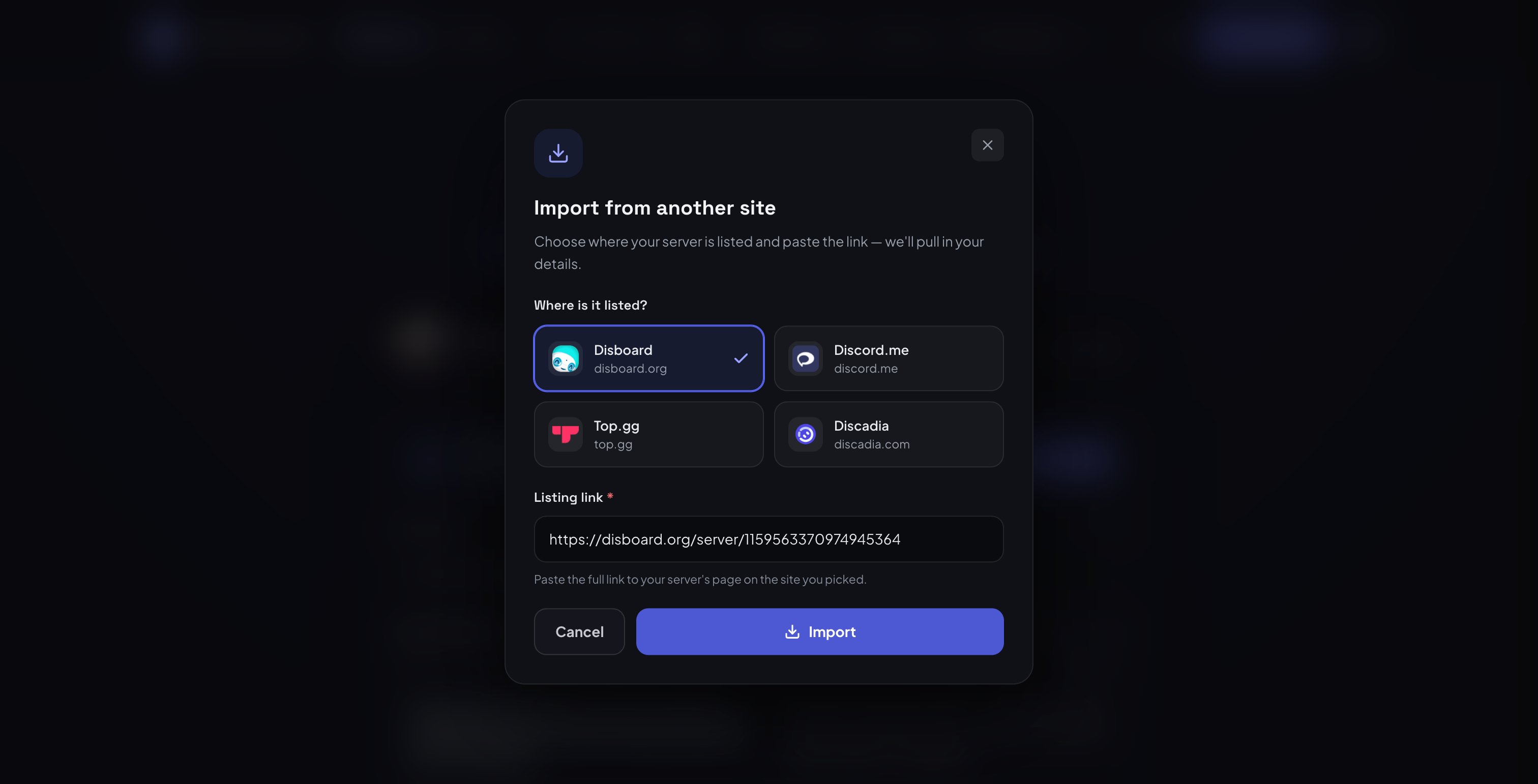
Select the platform that contains your existing server listing.
4. Select the platform and enter your listing link
Choose the platform where your server is listed, then paste the full link into the Listing link field.
For Disboard and Top.gg, TheDiscordList may fill in the expected link automatically using your Discord server ID. Check that the link points to the correct listing before continuing.
A Disboard link looks like this:
https://disboard.org/server/123456789012345678
The link must:
- Start with
https:// - Point to the individual server listing
- Belong to the platform you selected
- Refer to the Discord server chosen in the first step
Do not paste a platform homepage, search page, category page, or listing for another server.
Select Import. The window will display Reading your listing… while the page is processed.
Watch the import process
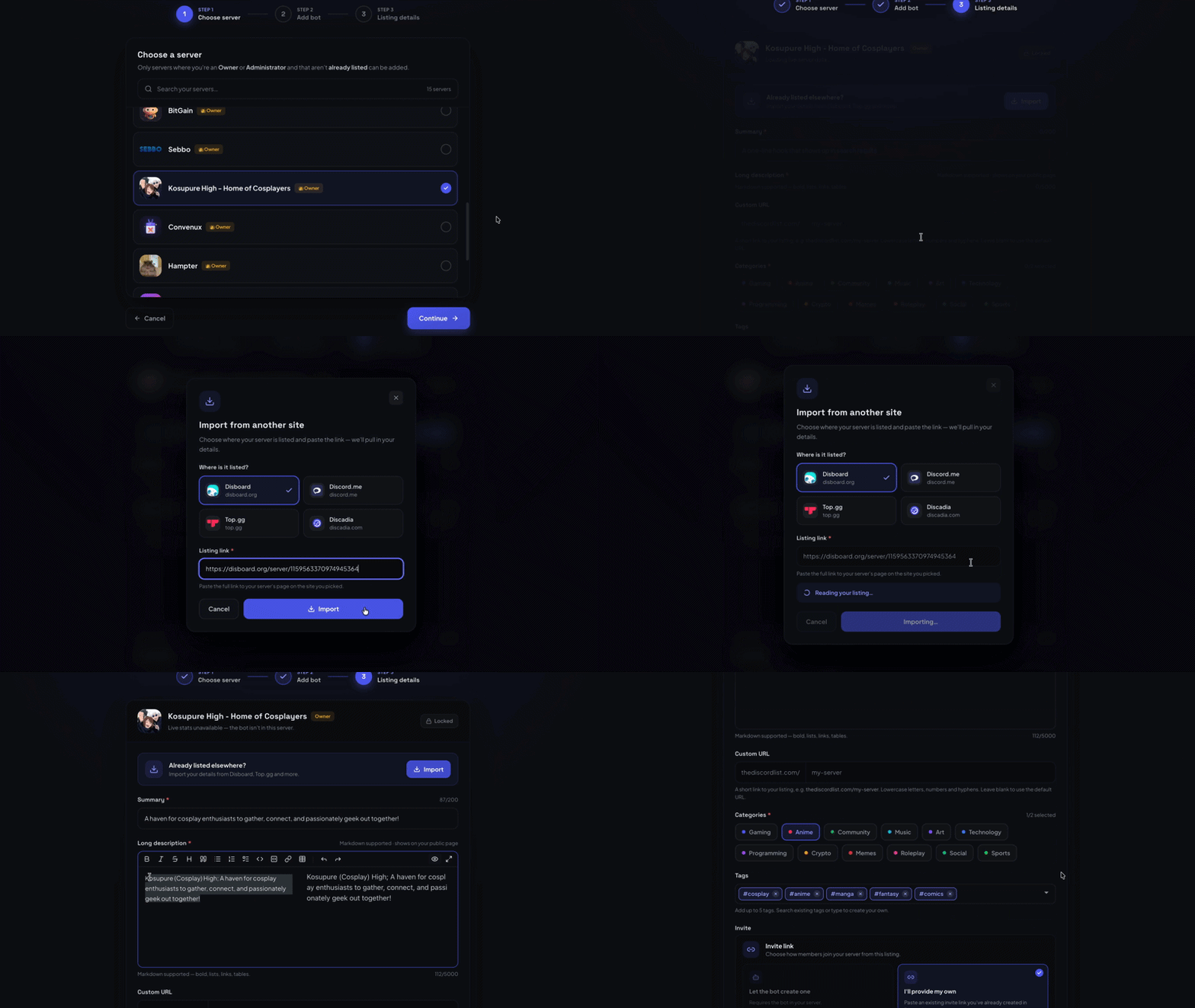
The video demonstrates how to select a platform, enter a listing link, and import the available details.
5. Review the imported fields
After the import succeeds, the window closes and focus moves to the Summary field.
The import replaces any existing values in these four fields:
- Summary
- Long description
- Categories
- Tags
The imported content is adjusted to TheDiscordList’s listing limits. A listing can contain a summary of up to 200 characters, up to two categories, and up to five tags.
Review the imported text carefully. Categories and tags are suggestions based on the source page and may need to be changed.
6. Complete and publish your listing
Finish the fields that importing does not provide, including:
- Vanity URL
- Invite settings or custom invite link
- Banner
- Languages
- Social links
- FAQs
- Content rating (whether the server is NSFW)
- Referral code, if applicable
When everything is accurate, select Publish listing. It goes live once a short automated review clears it.
Nothing is saved or published by the import itself. Your listing is created only when you complete the wizard and publish it.
Troubleshooting
The link is not accepted
Confirm that the link starts with https:// and belongs to the selected platform. For example, a Top.gg link will not be accepted while Disboard is selected.
The link is for a different server
The listing must belong to the Discord server you selected in the first step. Check that you copied the correct listing URL.
TheDiscordList cannot confirm the server
The source page must contain enough information to associate it with your selected Discord server. Make sure the listing is public, available, and belongs to the correct server.
The listing cannot be read
Some platforms may temporarily block automated access or make a page unavailable. Try again later or enter your details manually.
Some details are missing or inaccurate
Platforms present listing information differently. TheDiscordList imports only the information it can identify and maps categories to those available on TheDiscordList.
Correct incomplete or outdated information before publishing.
Too many import attempts
Imports are limited to five attempts per minute. Wait a minute before trying again.
The platform is not supported
Importing is optional. You can still create a listing by completing the fields manually.