
Add a TheDiscordList badge to your website or README
Every listed server and bot gets a small live badge with its member, server or upvote count. It links to your listing, updates itself, and takes ten seconds to add to a website, GitHub README or bot docs.
Your website, your GitHub README and your bot's docs already get visitors. A badge turns some of them into members, voters or installs: a small, familiar shield that shows a live number and links straight to your listing on TheDiscordList.
Where to find it
Open your listing's manage page and go to Statistics. At the bottom is Badge for your site, with a preview and two snippets ready to copy.
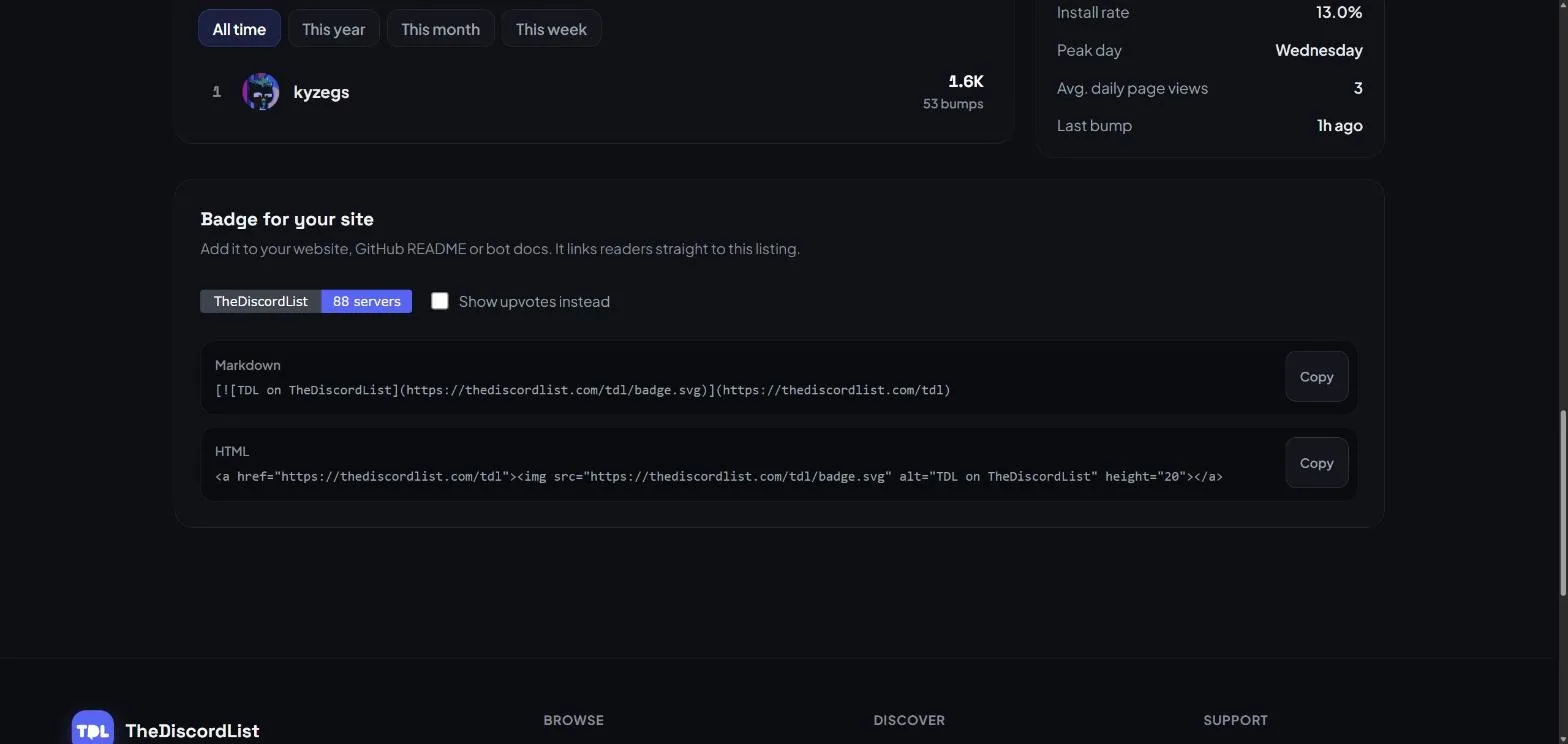
The badge card on the Statistics tab. Tick Show upvotes instead and the snippets update to match.
- Markdown, for GitHub READMEs, docs sites and anywhere else that renders Markdown.
- HTML, for a website, a blog sidebar or a link-in-bio page.
Press Copy, paste it where you want it, done.
What it shows
The badge always reads TheDiscordList on the left. The right side shows:
- Servers: your current member count, like
12.4K members. - Bots: how many servers the bot is in, like
88 servers, as reported to us by the bot. - Upvotes, if you tick Show upvotes instead. Handy if your community votes a lot and you want that to be the number people see.
Large numbers are shortened (1.2K, 3.4M), and the badge falls back to listed when there is no number yet, for example before a bot has posted its first stats.
How it stays current
The image is served from your listing's own address, like thediscordlist.com/your-vanity/badge.svg, and refreshed about once an hour. You never have to touch it again: the number on your site moves with your listing.
If the listing is not publicly listed, for example hidden, back in review or taken down, the badge stops showing, so you are never advertising a listing people cannot open.
Where it works best
- Bot READMEs and docs. Developers already scan the top of a README for shields. A server count next to your build status is social proof, and the link sends readers to a page with your commands, status and an Add to Server button.
- Your community website. Next to the Discord join button, a member count makes the server feel real before anyone clicks.
- Streams and video descriptions. Use the plain listing link there, and the badge on any site that renders images.
Bots on Gold and above also have a separate status badge for their hosted status page, showing whether the bot is up. Run both side by side if you like: one says how many people use it, the other says it is working right now.
Pair it with webhooks
A badge brings people in; webhooks tell you when they arrive. Point a listing.upvoted or server.joined webhook at a staff channel and you can watch traffic from your own site turn into activity.
Not listed yet? The badge comes with every listing, free. Add your server or list your bot.