
Discord PFPs and banners: browse, preview and share
TheDiscordList now has a directory of Discord profile pictures and banners. Search them, preview them on a Discord profile, download them in full quality, and share your own.
TheDiscordList now has two new directories next to emojis and stickers: Discord PFPs and Discord banners. Browse what the community has shared, preview it on a Discord profile, and download it in full quality. No account needed to look or download.
This guide walks through finding an image, what you get on each one, and how to share your own.
Find a PFP or banner
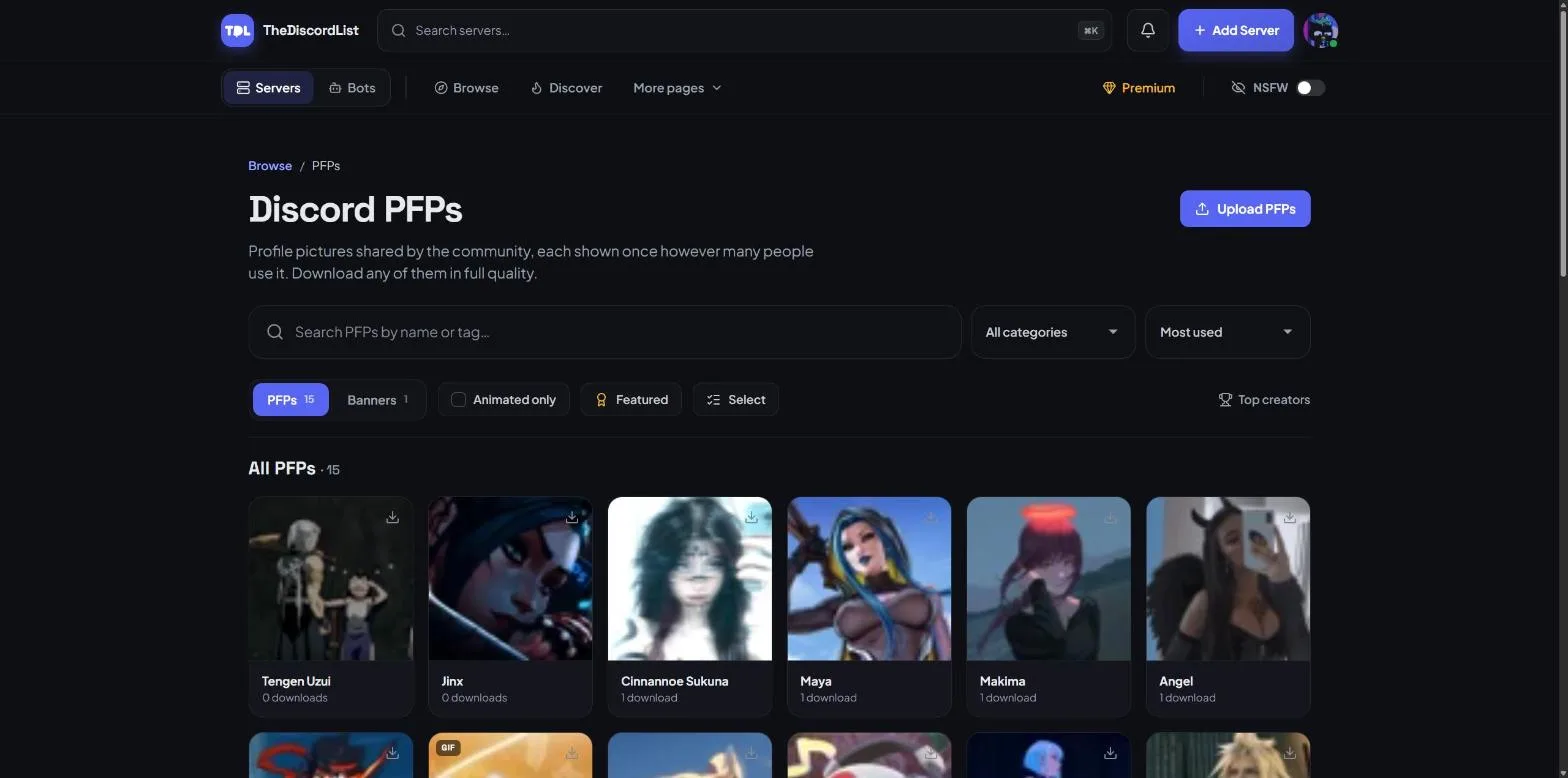
Both directories work the same way, and the PFPs / Banners switch above the grid jumps between them.
- Search by name or tag. Type a character, a show or a vibe, and the grid narrows as you go.
- Pick a category from the dropdown to stay in one lane, like Anime or Gaming.
- Sort by most used, newest, most downloaded, oldest or A–Z.
- Animated only shows just the GIFs. Animated ones carry a small GIF badge in the grid.
- Featured shows the picks our moderators highlight.
- Top creators shows the people behind the uploads.
Every image is shown once, however many people use it. If ten people upload the same picture, you see one entry with all ten counted, not ten copies cluttering the grid.
Want several at once? Hit Select, tick the ones you like and download them together in one zip.
Everything on an image's page
Open any image and you get more than a download button.
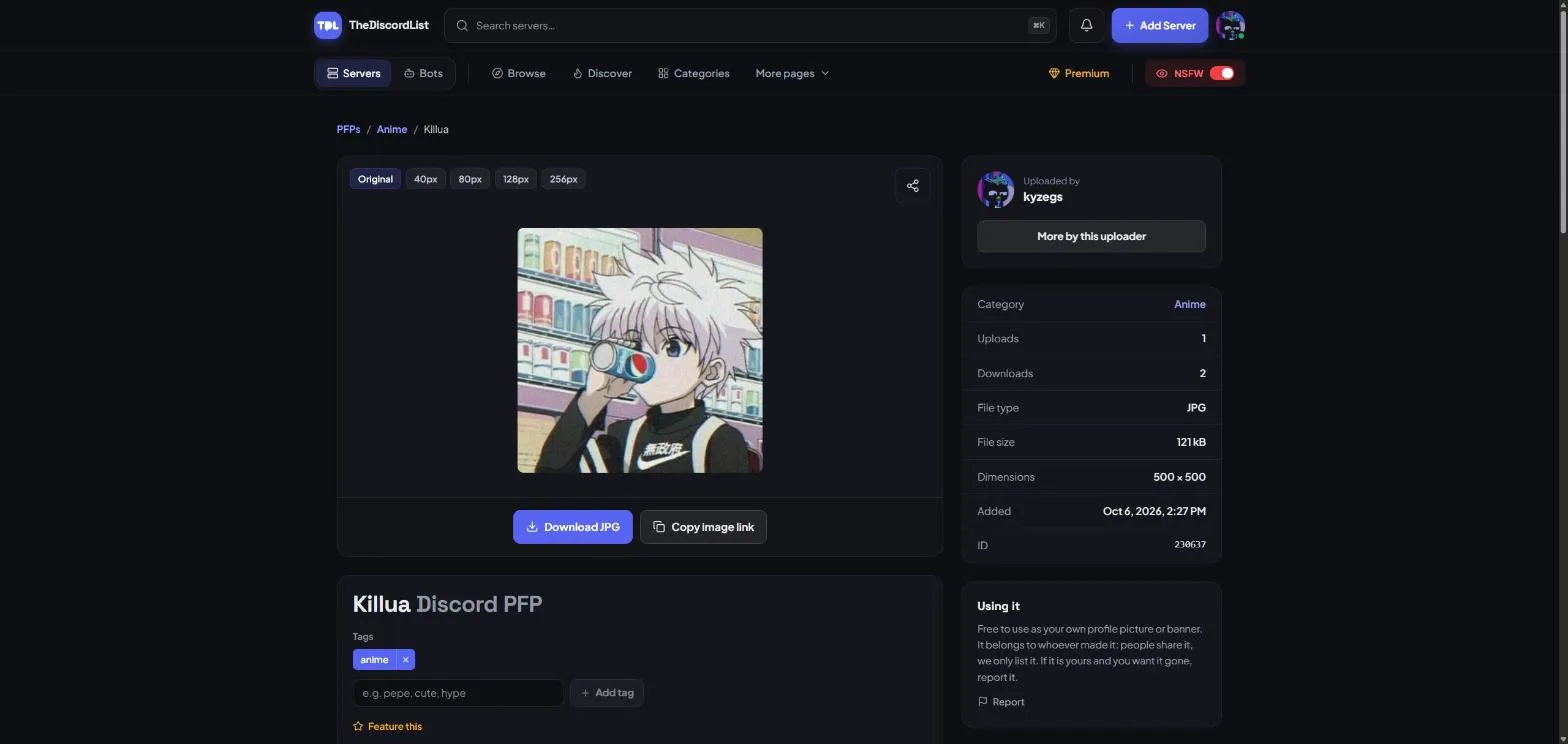
- Sizes. View the original or check it at 40, 80, 128 and 256 px, so you can see how it holds up at the size Discord actually shows it.
- Download in the original format and full quality, or copy the image link.
- Tags. Signed-in members can add tags to help others find it, and click any tag to see everything else under it.
- Details. Category, uploader, file type, size, dimensions and how often it has been downloaded.
Preview it on Discord before you commit
The Discord preview puts the image on a mock profile card and next to a chat message, in Discord's Light, Ash, Dark and Onyx themes. It is the quickest way to see whether a PFP still reads as a tiny circle in chat, or whether a banner gets cropped somewhere awkward.
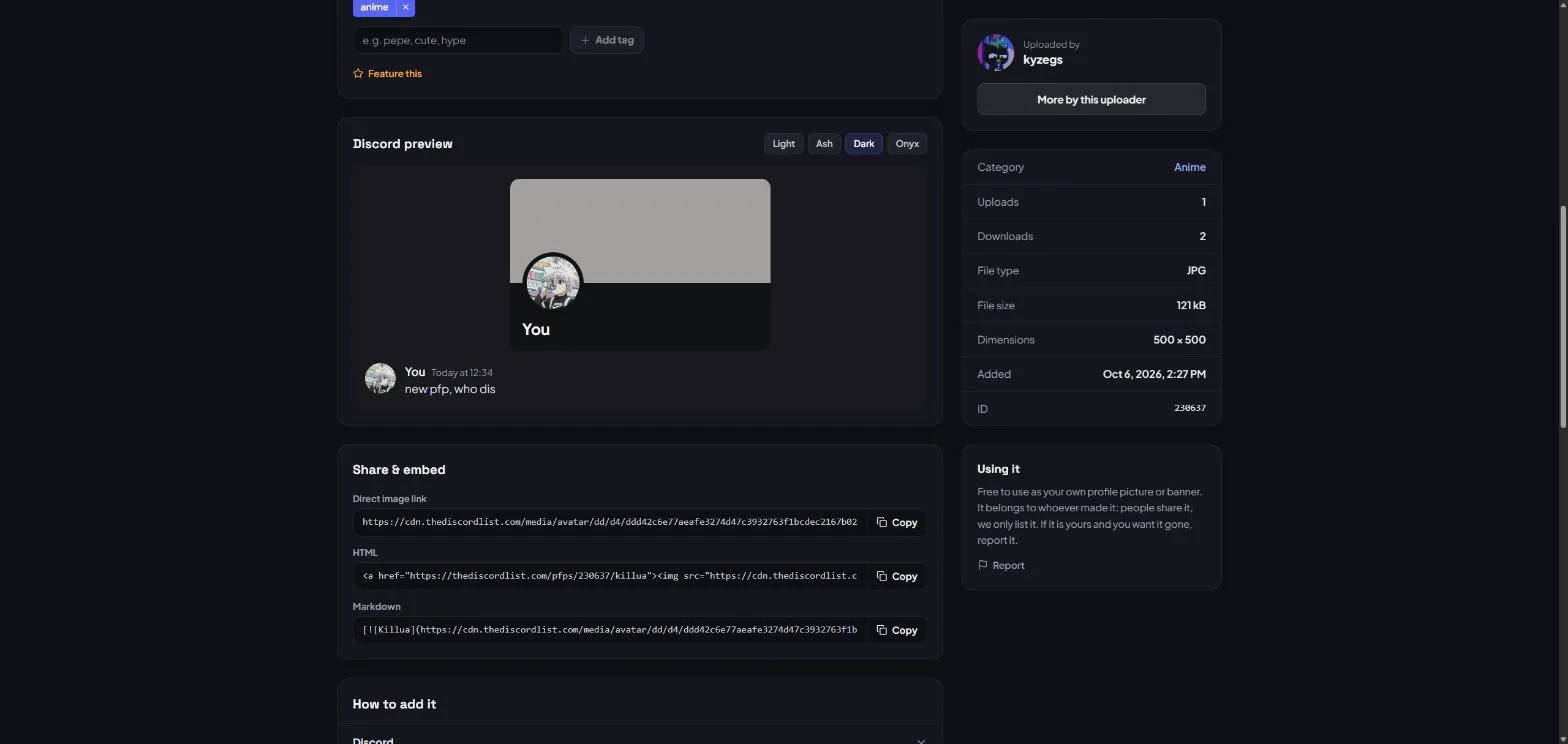
Under it, Share & embed gives you a direct image link plus ready-made HTML and Markdown, and How to add it has short steps for setting it on Discord, Steam and X (Twitter).
Banners
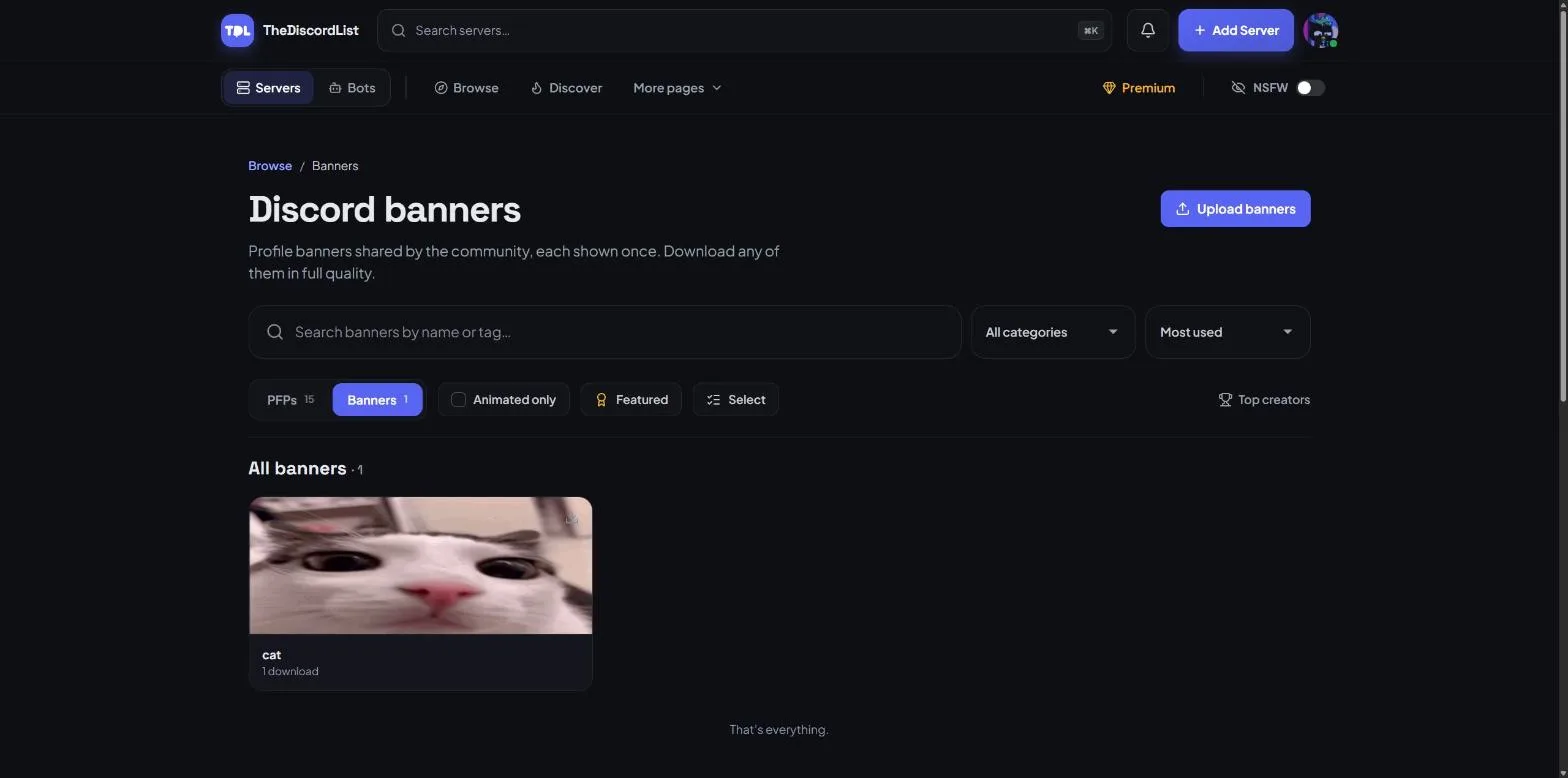
Discord banners are the wide image across the top of your profile. They get the same search, filters, previews and downloads as PFPs.
Share your own
Sign in and press Upload PFPs or Upload banners at the top of either directory.
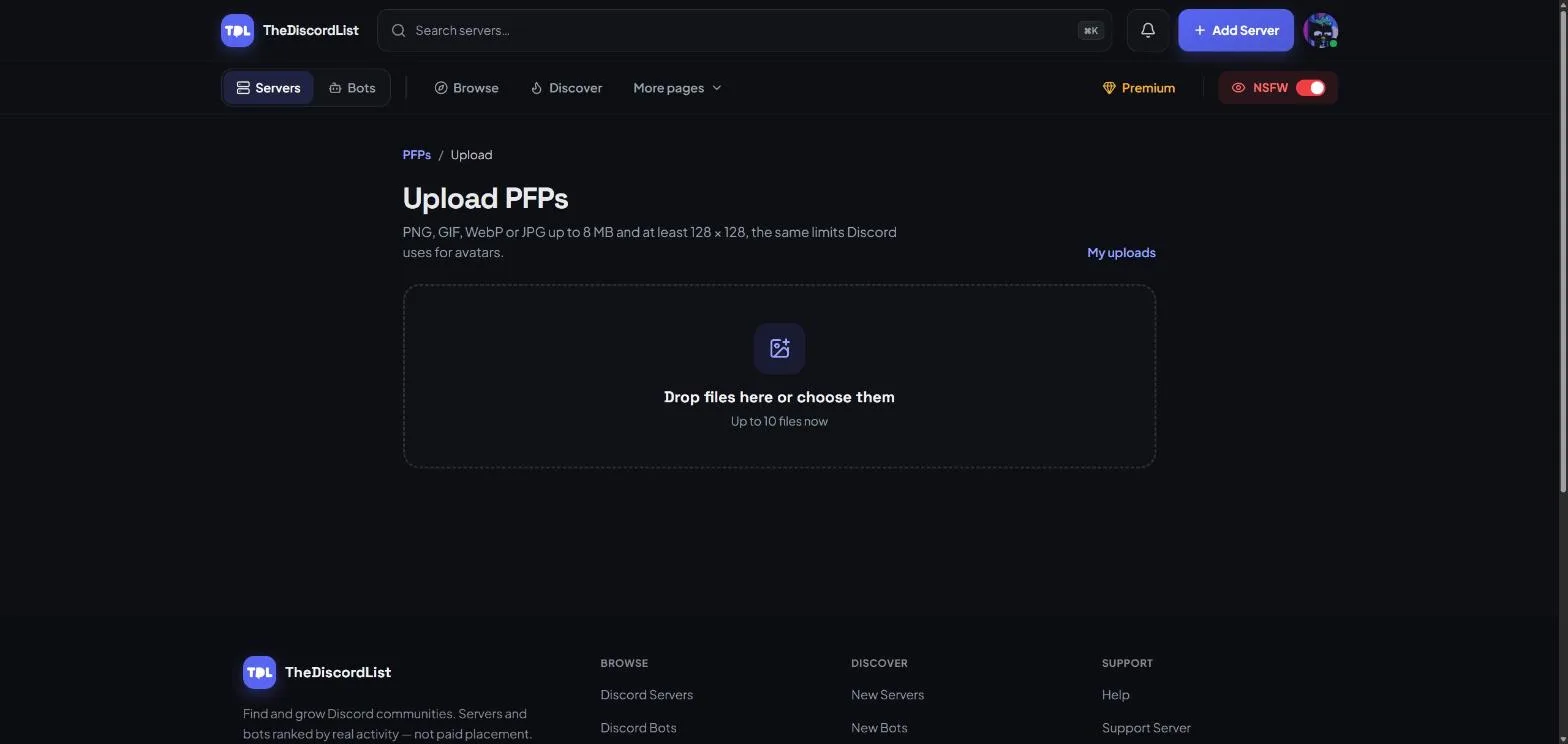
- PFPs: PNG, GIF, WebP or JPG, up to 8 MB and at least 128 × 128. These are the same limits Discord uses for avatars, so anything you upload here works there.
- Banners: up to 10 MB and at least 600 × 240.
- Cropped to Discord's shape. A PFP is stored as a square and a banner at 5:2, the boxes Discord actually shows them in. If a file is off that shape, the upload row says so and an Adjust crop button lets you drag and zoom to the part you want; skip it and we keep the centre. GIFs stay animated.
- Up to 10 files at a time. Give each one a name, add a few tags so people can find it, and mark anything age-restricted as NSFW.
- Only share what you have the right to share. You confirm this before uploading.
Every upload is screened before it shows up, anything the screen is unsure about goes to a moderator, and it stays credited to you. You can find everything you have shared under My uploads, where you can rename it, change its tags or mark it NSFW later.
Or let your profile do it for you
Turn on avatar history in your profile settings and your Discord avatar and banner are added for you each time you change them, credited to you and lined up as your own history. You can rename any entry, mark it NSFW, or clear the whole history whenever you like.
Something there that shouldn't be?
Every image belongs to whoever made it. People share it, and we only list it. If something is yours and you want it gone, or it breaks the rules, use Report on its page and a moderator will take a look.
Age-restricted images stay hidden unless you switch on the NSFW toggle in the navigation.
Ready to find your next look? Start with Discord PFPs or Discord banners.