
Discover your people: a first look at Discover
Discover is a new way to find Discord communities that fit you. Like or skip server cards, shape your recommendations, and keep the best matches together in one place.

Finding a Discord server should feel exciting, not like searching through an endless wall of results. That is why we built Discover, a different way to explore communities on TheDiscordList.
Discover gives you a deck of recommended servers, one card at a time. It works for bots too. You decide what looks interesting, and your choices help shape what appears next. The result is a faster, more personal route to communities you may actually want to join.
Open Discover in the main navigation, or go straight to thediscordlist.com/servers/discover. Switch the header to Bots for a deck of Discord bots instead.
Start with a server card
Each card gives you the details you need to make a quick decision. You can see the server’s name, description, categories, tags, member count, online count, verification status, and plan badge when one applies.
The card also shows a match percentage, so you can see how close it sits to what you have liked so far. Before Discover has learned anything about your interests, it begins with popular communities. As you react to cards, the recommendations become more specific.
Want the full picture before deciding? Open the server from its card to view the complete listing.
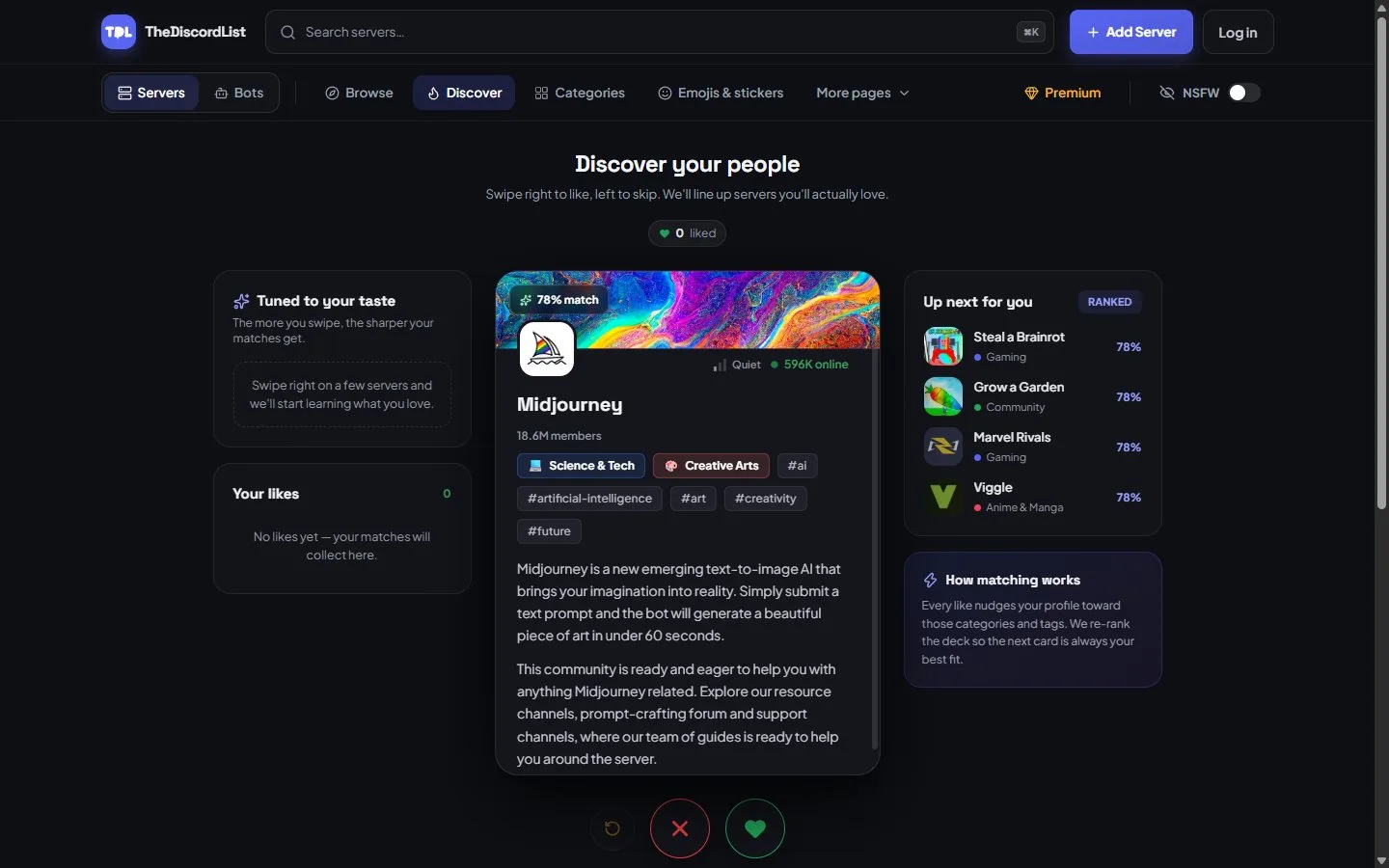
A fresh Discover deck. Until you have liked a few servers, it starts with popular communities.
Like or skip in the way that suits you
There are three ways to move through the deck:
- Drag a card to the right to like it or to the left to skip it.
- Use the Like and Skip buttons below the card.
- Use the right and left arrow keys on a keyboard.
A like tells Discover that you want to see more communities with similar subjects and interests. A skip moves past that server and helps steer future suggestions away from poor matches.
Changed your mind? Use Rewind to return to your most recent card. Rewinding also removes that reaction, so you can make the choice again.
Watch your taste profile take shape
Your taste profile starts empty. As you like servers, Discover looks at the categories and tags they share. The Tuned to your taste panel turns those signals into a simple breakdown of your current interests.
For example, liking several gaming and roleplay communities may give those topics more weight. The Up next for you panel previews the servers coming next, ordered around what Discover currently understands about your preferences.
Your taste profile is not a permanent label. Each reaction can adjust it, allowing the deck to follow a new interest or move away from suggestions that are no longer useful.
Keep track of the communities you like
Every server you like is collected under Your likes. Open the complete list to compare matches, revisit a listing, or join when you are ready.
You can use Discover without an account. Guest reactions stay in the browser on that device. If you sign in, your reactions are also connected to your TheDiscordList account. This allows your liked servers to follow you across sessions and devices.
Signing in is optional for exploring, but it is the best choice if you do not want to lose a promising collection of communities.
What happens when you reach the end?
Discover loads more recommendations as you move through the deck. If there are no new matches left, you will see an all-caught-up message with a count of the servers you liked.
You can then review the deck from the top. Starting over does not erase the preferences you have already shared. It lets you revisit the available cards while keeping those reactions in place.
How matching works
Discover uses listing information and your reactions to rank possible matches. Likes pull recommendations toward similar communities, while skips help move them away from suggestions that did not fit.
Categories and tags also help explain why a card appears and how strongly it matches your current taste. Your reactions gradually provide a clearer picture of the subjects and communities that interest you.
The match percentage is a guide, not a promise. It helps you compare the cards in your current deck. The best test is still opening a listing, reading what the community is about, and deciding whether it feels right for you.
Discover complements search
Search remains the right tool when you already know what you want. You can enter a name, category, language, or subject and browse the matching results.
Discover is designed for the moments when you do not have a specific destination in mind. Instead of presenting a long list of choices, it asks one useful question at a time: does this community look like a place for you?
You can search when you have a destination, browse when you want to compare options, and use Discover when you are open to something unexpected.
Start your deck
Open Discover in the main navigation and start shaping a deck that is yours. After a handful of likes, the Tuned to your taste panel shows what it has picked up.
Own a community that should be part of someone else’s next great match? List your Discord server on TheDiscordList and make sure its description, categories, and tags clearly communicate what makes it worth discovering.