
How to Audit the Bots Already in Your Discord Server
Most servers past their first year carry three or four bots nobody uses and at least one running with Administrator. The audit takes an hour and usually ends in a removal.
Bots accumulate quietly. Someone adds one for an event, a mod adds another for a feature the first one already had, and two years later the member list has nine bots, four of which have not posted since last summer. Each one is a live integration holding permissions in your server.
Build the inventory
Start in Server Settings, Integrations. That view lists every bot and app, its command permissions, and any webhooks. For each bot, write down:
- Name and what it is supposed to do
- Who added it and when, from Server Settings, Integrations (the audit log only goes back 45 days)
- Its highest role and where that sits in the hierarchy
- The last date you saw it do anything
Then check Server Settings, Roles for bot roles with no bot attached, and the Webhooks list in individual channel settings. Webhooks outlive the bot that created them and keep posting.
A spreadsheet or a pinned staff message both work. The point is seeing the whole set at once, because the real problems are only visible in aggregate.
Ask four questions per bot
- Is it doing anything? Search its name in your channels and find its last message. No output in 90 days means a dead integration holding live permissions.
- Is something else doing the same job? Overlap is the most common finding. Two bots both handling welcome messages, or a multipurpose bot whose logging you disabled after adding a dedicated logger.
- Is it still maintained? Check its support server and site. On TheDiscordList, a bot page lists the commands its developer publishes, and bots on Gold and above can run a public status page with 90 days of uptime history. An abandoned bot is not neutral, it is an unpatched service with a token that can act in your server.
- Would you grant these permissions today? Judge the current permission set as if the bot were being invited fresh this afternoon.
Read the permissions honestly
Most owners approve an invite link without reading it. Review them now from the Roles tab rather than the invite page.
| Permission | Why it matters | Who genuinely needs it |
|---|---|---|
| Administrator | Bypasses every other check, including channel overrides | Essentially nothing |
| Manage Server | Changes server settings, sees invites | Rare |
| Manage Roles | Assigns any role below its own | Role and leveling bots |
| Manage Webhooks | Creates endpoints that post as anything | Logging bots, relays |
| Manage Channels | Creates and deletes channels | Ticket bots |
| Ban Members | Removes and blocks members, and can wipe up to 7 days of their messages | Moderation bots |
| Mention Everyone | Pings the whole server | Almost nothing |
Administrator is the one to hunt for. Plenty of setup guides tell you to grant it because it is easier than working out the real list, and plenty of those bots never need it. Replace it with the specific permissions the bot's documentation names. If the documentation cannot name them, that itself is information about the bot.
Check where the permissions apply too. A moderation bot with Manage Messages server-wide can delete in your staff channels. Channel overrides let you scope it down.
Check the human side
A bot is only as safe as the account controlling its dashboard. For every bot with a web panel, confirm who on your team can log in, and remove anyone who has left. When a mod departs, their dashboard access to a leveling or ticket bot usually survives the role removal.
While you are in settings, confirm two-factor authentication is required for moderation actions under Safety Setup, and that your own account has it enabled.
Remove properly
Kicking the bot is not the whole job.
- Kick the bot from the member list.
- Delete any extra roles you gave it. Its own auto-created role leaves with it.
- Delete webhooks it created, in each channel's Integrations settings.
- Revoke the app in Server Settings, Integrations if it is still listed.
- Delete or archive channels it owned, such as an unused log channel.
- Post the removal in your staff channel so nobody re-adds it next month.
If you are unsure whether a bot is load-bearing, strip it to View Channel for a week instead of removing it. Anything that breaks will announce itself.
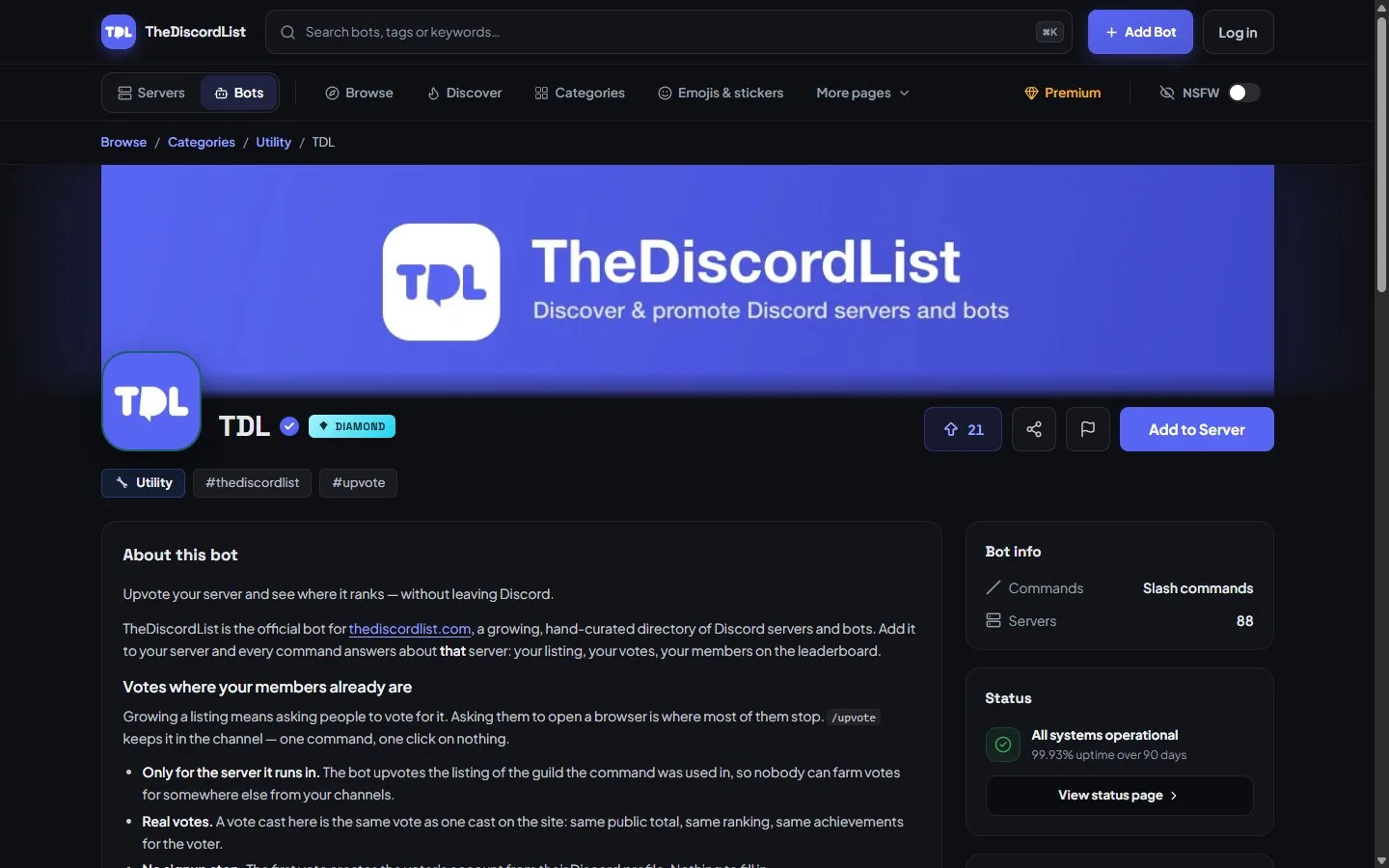
Before you replace a bot, check its listing: commands, server count and uptime say more than the description.
Replace with intent
Audits usually open a gap: you removed a dead logger and now need one. Do the replacement deliberately. Compare two or three candidates in the logging or moderation categories, check each one's update activity and support responsiveness, and invite with the narrowest permission set its documentation supports.
Put the next audit in your calendar three months out. Ten minutes a quarter beats an hour of archaeology.