
How to Add a Bot to Your Discord Server
Inviting a bot takes thirty seconds. Getting it working on day one, with only the permissions it needs and nothing you cannot explain, takes a few minutes more.
Adding a bot to a Discord server is a short OAuth2 flow. Most of the work is what happens around it: picking the right bot, granting a permission set you can defend, and checking it works before you announce it in chat.
What you need before you start
You need the Manage Server permission on the server you are adding to. Discord's install screen only lists servers where you hold it, so when the server you want is missing from the dropdown, that is almost always why. Server owners always qualify. If the server has the two-factor authentication requirement turned on for moderator actions, your own account needs 2FA enabled as well.
You also need to have chosen a bot, and the useful way to choose is by job rather than by install count. One focused bot configured properly beats a multipurpose bot you use at ten percent. Browse by function: moderation bots, ticket bots, logging bots, or general utility bots.
Setting up a new server from scratch? Bot packs put a whole starter set on one page, in the order to add them.
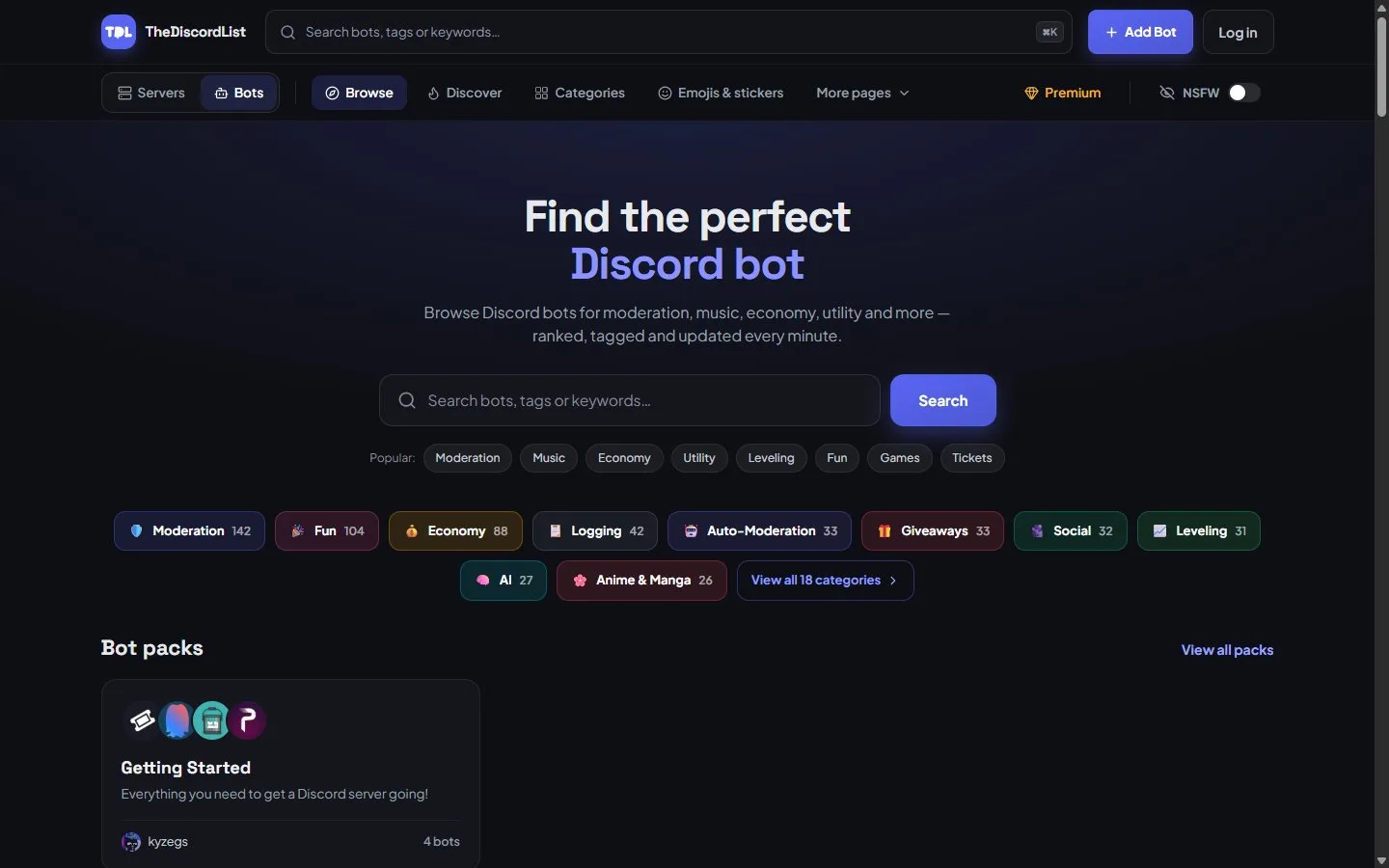
Every Add to Server button on TheDiscordList goes straight to Discord's own install screen, so the steps below are the same wherever you start.
The install, step by step
- Start from a source you can verify. The developer's own site, Discord's App Directory, or a listing in the TheDiscordList bot directory, which only links to Discord's own authorize page. Either way, check that the bot named on the authorize screen is the one you meant to add. Invite links pasted into chat by a stranger are the standard way people end up installing a look-alike bot with a near-identical name and avatar.
- Click add or invite. You land on Discord's authorize screen, which is hosted on discord.com. Check the domain. Nothing else should ever ask for your Discord password to add a bot.
- Pick the target server from the dropdown.
- Read the permission checklist and untick what you do not need. The screen shows the permissions the developer requested, and most of them can be deselected before you approve. A bot that stops working because you removed Ban Members is a bot you have learned something about.
- Approve and clear the captcha.
- Confirm the bot joined. It appears in the member list under a role Discord created automatically, named after the bot. That role is managed: you cannot hand it to humans or delete it while the bot is present, but you can edit its permissions and drag it up or down the role list.
If you want tighter control, build the invite link yourself. Bot invites are ordinary URLs with the application's client ID, the requested scopes, and a permissions bitfield. Swapping in a smaller bitfield produces a smaller grant, and the bot's own documentation usually tells you the minimum it can run on.
The permission screen is a contract
Two things get granted at install. The permission set becomes the bot's managed role at server level, and that role is then subject to your channel overwrites like any other role.
Administrator is the one to think hard about. It grants every permission and it ignores channel overwrites entirely, so a bot with Administrator can read every channel in the server including staff-only ones, regardless of how those channels are locked down. Some bots genuinely need broad access. Very few need all of it. If a bot's setup guide says "just give it Administrator, it's easier", treat that as a statement about the developer's support burden, not about your server's needs.
You can change all of this after the fact. Server Settings, then Roles, then the bot's role. Removing a permission later does not break the install.
Verify it before you announce it
- Type
/in a channel and look for the bot's commands. If nothing shows up, restart your client first. If they are still missing, the bot may not have registered its commands yet, its commands may be restricted under Server Settings, then Integrations, or the channel may deny Use Application Commands. - Test in a private staff channel first, not in general chat. Level-up messages, welcome messages, and automod actions all look different once real members are in the room.
- Check the bot's role position. A moderation bot placed below the roles it is supposed to moderate cannot touch them. Drag its role above every role it needs to act on, and below your own staff roles.
- Expect slash commands rather than prefix commands. Reading the text of ordinary messages is a privileged capability that Discord gates, so many bots have moved entirely to slash commands and no longer respond to
!or-prefixes.
What usually breaks on day one
- The bot is silent in one channel only. A channel overwrite is denying View Channel or Send Messages to its role. Check the channel's permission tab, not the role.
- It cannot assign a role. It needs Manage Roles, and the role it is assigning must sit below its own highest role.
- It cannot ban or timeout a specific member. That member's highest role is at or above the bot's. Ties fail, so equal position is not enough.
- Moderation commands fail server-wide. If the server requires 2FA for moderator actions, the bot owner's account must have 2FA enabled for the bot to perform them.
- It never sees new members joining. The bot needs the server members intent enabled by its developer. Nothing you change in your server settings will fix that one, so report it to them.
Removing a bot without leaving debris
Kicking the bot removes it and its managed role. What it leaves behind is everything it created: webhooks in your channels, config or log channels, reward roles, scheduled messages. Sweep Server Settings, then Integrations, for orphaned webhooks after any bot removal.
If the bot stored member data, level tables, moderation cases, ticket transcripts, that data usually lives on the developer's servers. Their privacy policy should say how to request deletion.
Next: open Server Settings, then Integrations, click the bot you just added, and restrict each of its commands to the channels and roles that should be able to run them. Five minutes there prevents most of the "why did a member just run that" questions later.