
Discord Bot Permissions Explained
Discord resolves bot permissions in a fixed order across three layers, and a separate hierarchy rule decides who the bot may act on. Learn both and almost every permission bug becomes obvious.
A bot has exactly the permissions its roles give it, filtered through channel overwrites, and it can only act on members and roles positioned below it. Nearly every "the bot is ignoring me" report comes down to one of those two rules.
Layer one: server-level permissions
When a bot joins, Discord creates a managed role for it holding whatever was ticked on the invite screen. That role can be edited afterwards, and you can add other roles to the bot on top of it.
Server-level permissions are a union. If any of the bot's roles grants Kick Members, the bot has Kick Members at server level. There is no server-level deny; roles only add. This is why stacking three roles on a bot rarely restricts anything and usually widens it.
Layer two: channel overwrites, in order
Overwrites are where server-level permissions get narrowed or reopened per channel. Discord evaluates them in a fixed sequence:
- The
@everyoneoverwrite on that channel, deny then allow. - All role overwrites that apply to the bot: every deny is applied first, then every allow.
- The member-specific overwrite for the bot, deny then allow.
Two consequences matter in practice. Because role denies are applied before role allows, one deny on a rarely used role cannot silently override an allow on another role. And because the member-level overwrite runs last, adding the bot directly to a channel is the reliable way to grant it access to one place without touching its roles.
Layer three: Administrator and the owner
Administrator grants every permission and skips overwrite evaluation entirely. A bot with Administrator can see every channel, including the staff channel you carefully locked down. The server owner is always above everything.
What Administrator does not do is beat the hierarchy. An Administrator bot still cannot ban a member whose highest role sits above its own. This trips people up constantly, because the fix looks like a permission problem and is actually a position problem.
The hierarchy rule is separate from permissions
Permissions decide what a bot may do. Hierarchy decides who it may do it to.
- A bot can only kick, ban, timeout, nickname or role-manage members whose highest role is strictly below its own highest role. Equal position fails.
- A bot can only assign, edit or delete roles positioned below its highest role.
- Nobody can moderate the server owner.
- Nobody can time out a member holding Administrator, though a bot positioned above them can still kick or ban them. That is a good reason not to hand Administrator out to humans either.
The practical setup: one staff role stack at the top, the bot's managed role directly beneath your human staff roles, and everything it moderates below that. If you later add a role above the bot and moderation quietly stops working for those members, this is why.
What each kind of bot actually needs
| Bot type | Usually needs | Rarely or never needs |
|---|---|---|
| Moderation | View Channels, Send Messages, Manage Messages, Kick, Ban, Timeout Members | Manage Server, Manage Webhooks |
| Logging | View Channels, View Audit Log, Send Messages, Embed Links | Kick, Ban, Manage Roles |
| Tickets | Manage Channels or Create Private Threads, Manage Roles (to set channel overwrites), Attach Files | Ban Members, Manage Server |
| Leveling | View Channels, Send Messages, Embed Links, Manage Roles | Kick, Ban, Manage Channels |
| Music | View Channel, Connect, Speak, Send Messages, Embed Links | Manage Messages, Manage Roles |
| Pins and announcements | View Channels, Send Messages, Pin Messages (Manage Messages no longer covers pinning) | Manage Roles, Manage Server |
| Emojis and stickers | Create Expressions, to upload new emojis and stickers | Administrator, Manage Server |
The recurring surprise is Manage Roles on ticket bots. Editing a channel's permission overwrites is gated behind Manage Roles, so any bot that creates private channels needs it even though it never touches a member's roles. If you are shopping around, the ticket bot category and the reaction role category both list bots that will ask for it.
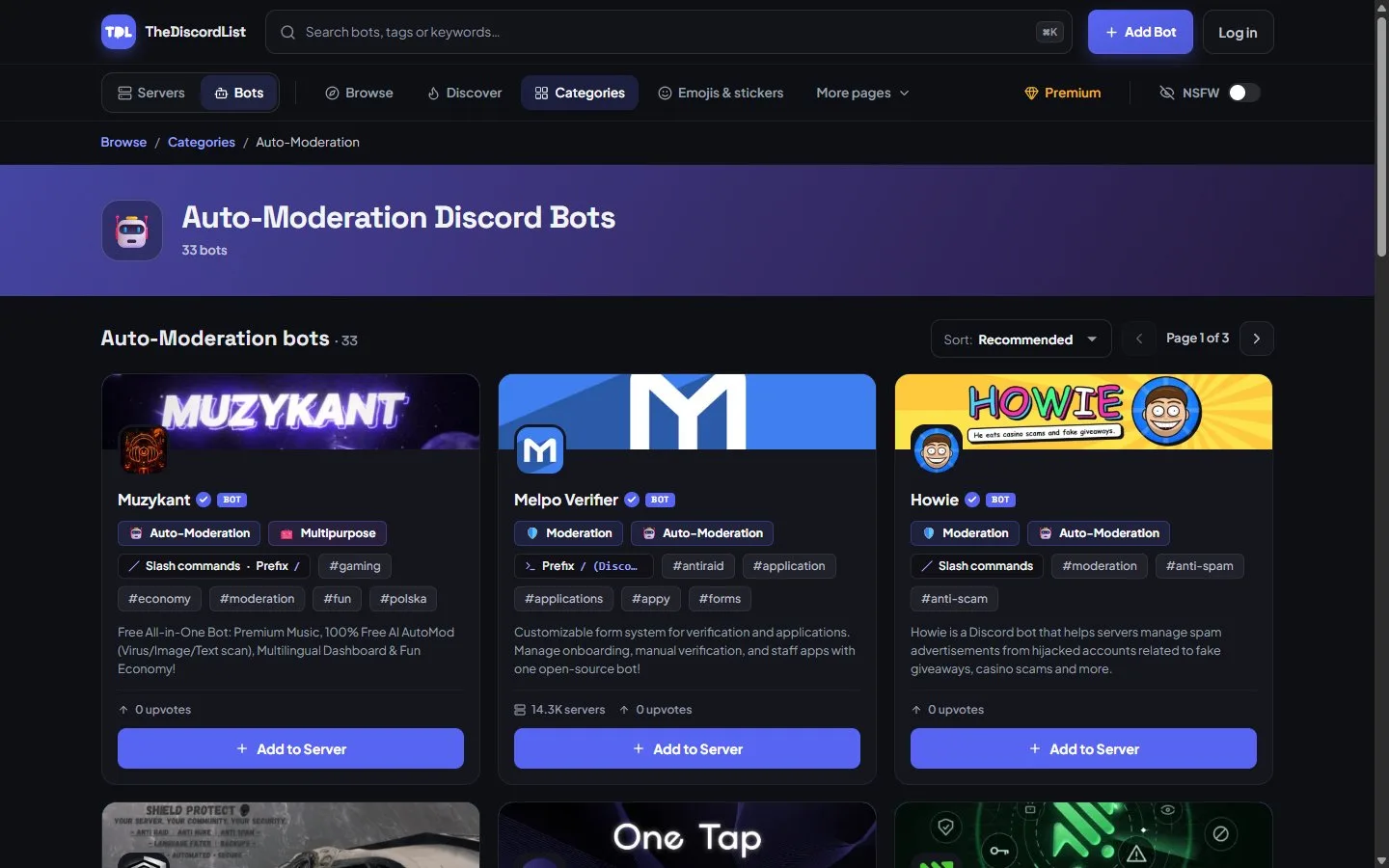
Auto-moderation bots need Manage Messages and Moderate Members, and almost never Administrator. Compare what they ask for before you invite one.
Intents: the permission Discord does not show you
Some capabilities are not in your permission checklist at all. They are privileged intents, toggled by the developer in their application settings and reviewed by Discord once more than 10,000 unique users can see the bot (since June 2026; it used to be a server count):
- Message Content: whether the bot can read the text of ordinary messages. This is why prefix commands largely disappeared and slash commands took over.
- Server Members: whether the bot receives join and leave events and can list members. Welcome messages and member-count features depend on it.
- Presence: online status and activity.
When a bot cannot see joins or cannot read messages no matter what you grant, it is an intent problem on the developer's side. Nothing in your server settings fixes it, so report it and move on.
The eight-item checklist for "the bot ignored me"
- Does the bot's role hold the permission at server level?
- Is a channel overwrite denying it in this specific channel?
- Is there a member-level overwrite on the bot in this channel?
- Is the bot's highest role above the target member's highest role?
- Is the role it is trying to assign below the bot's highest role?
- Does the server require 2FA for moderation? Then the bot owner's account needs 2FA too.
- Have the command's permissions been restricted under Server Settings, then Integrations?
- Is the failure actually a missing intent rather than a missing permission?
Run those in order and you will find it, usually by item four.
Next: open Server Settings, then Roles, and drag your moderation bot's role to sit directly below your lowest staff role. Then try a timeout on a test alt to confirm the hierarchy is where you think it is. Pair it with a logging bot so every action it takes lands in a channel you can read back later.